-1744950654.jpg)
Cheqpay lets small and mid-sized businesses in Mexico collect payments by link, card, bank transfer and cash. Its merchants were often tracking payments in Google Sheets and refreshing their bank feed to find out who had paid. The dashboard had to give them a better way to run that work without asking them to learn an enterprise finance tool.
We'd designed a wallet app for founder Thomas Cecil before. In December 2025, he came back with a different problem: Cheqpay had a working merchant dashboard and demand for it, but the first version had been built to test the market. Now the team needed a design they could keep building on.
Over a three-week sprint, we worked with Thomas and developers Angel Chavez and Vinicius Rosa on the dashboard's key screens and design system. The difficult balance was making it approachable for someone coming off a spreadsheet while keeping it useful for a merchant with thousands of transactions.
Make the money understandable before adding more reporting
Thomas already had an enterprise product to offer larger businesses. This dashboard was for the customers below it. He wanted the information they needed for daily work, without what he called “crazy drill downs”.
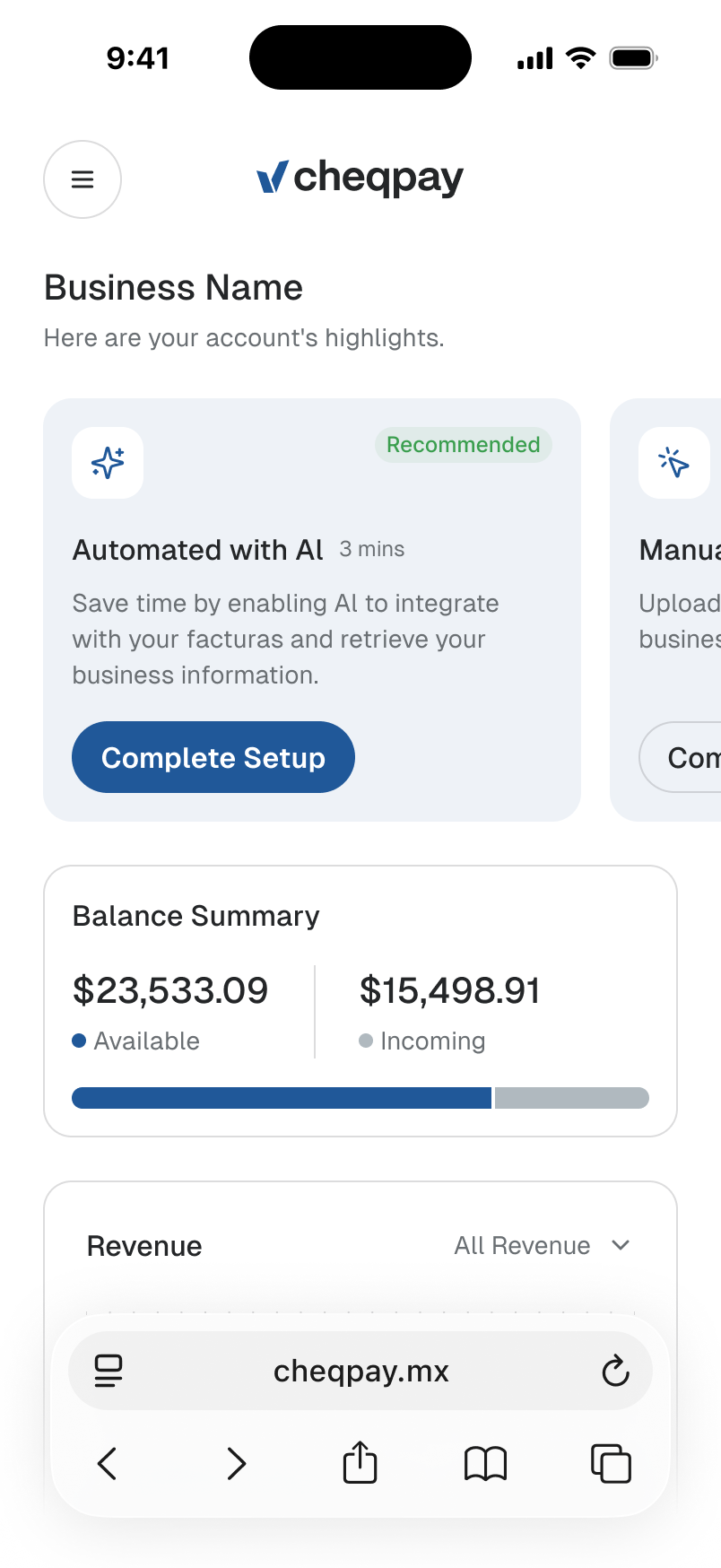
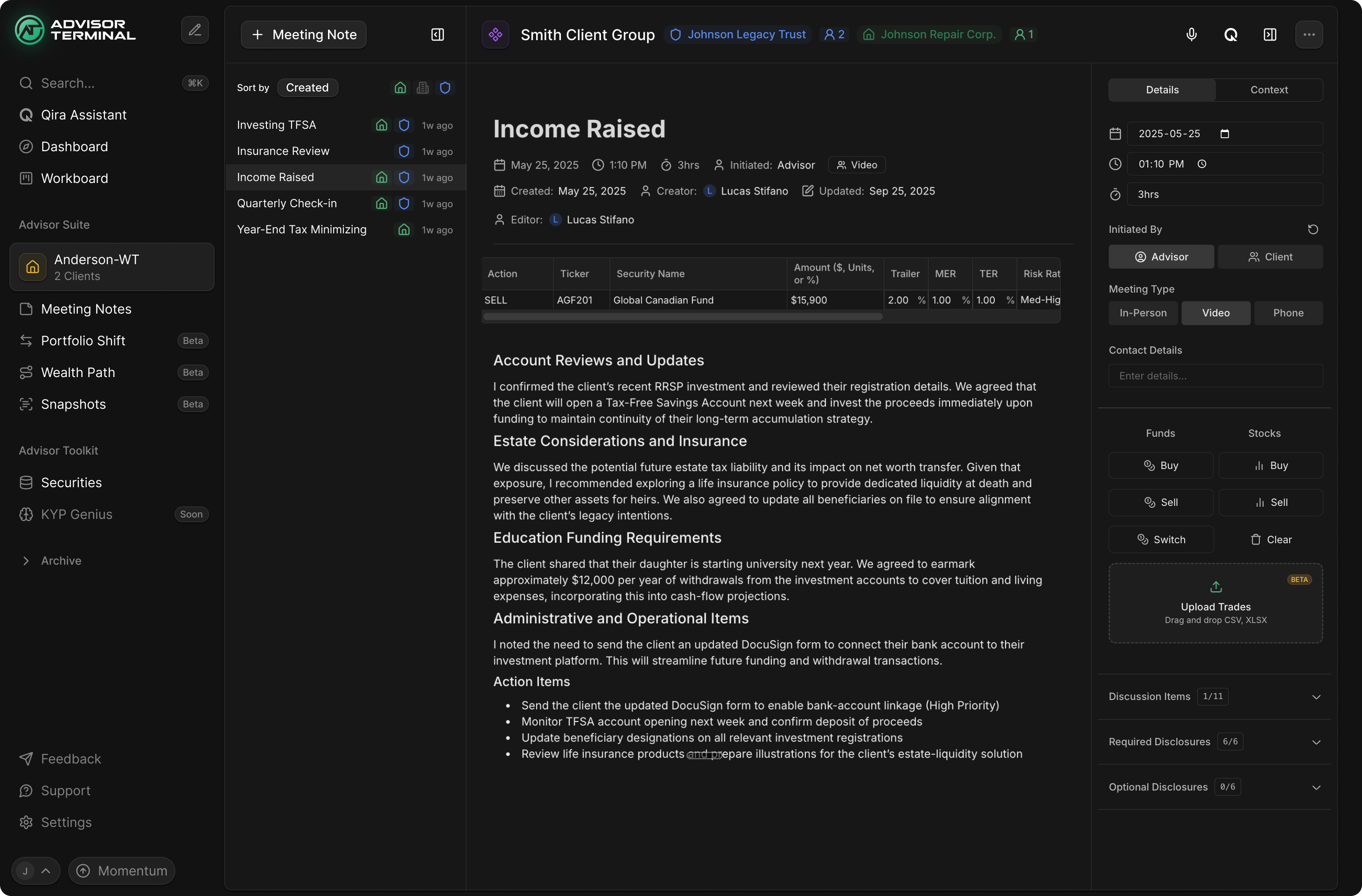
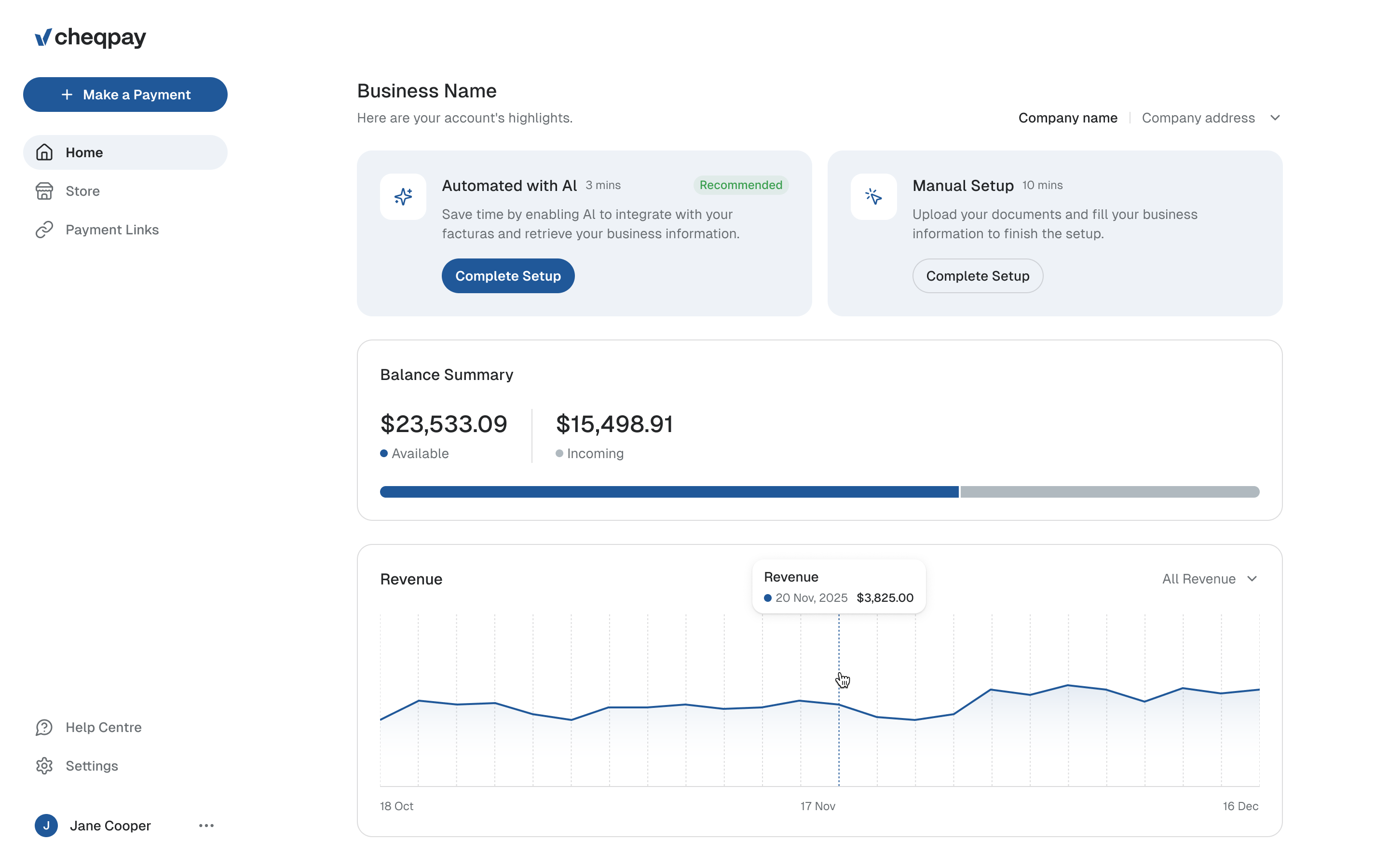
That gave us a useful starting point for the home screen. A merchant needs to know how much money they can use, what is still arriving, and how payments are performing. We separated available and incoming money in the balance summary, with a shared bar showing the relationship between them. Revenue sits in its own chart below.
The distinction matters in a payments product. A successful payment and money available to transfer aren't interchangeable. Putting the two balances together, with explicit labels, lets someone read their position without opening a report to reconstruct it.
a payment can be complete while the money is still incoming
Cheqpay also planned to introduce self sign-up in 2026. Thomas's earlier idea was to let someone enter the dashboard with an email and password, then complete the identity checks inside it. We carried that into the home screen: setup sits above the money, with a route that retrieves information from the merchant's facturas, Mexico's electronic invoices, and a manual alternative. The next job is visible in the place the merchant will return to.
Larger controls still need to work with a long transaction list
Thomas wanted to keep shadcn, the component library his developers were already using. Building every control again would spend time they needed for the product. His concern was the default feel: tiny buttons, dense configuration and a dashboard that expected its user to want to slice data.
I suggested doing much of the work through the layout. A white background, short navigation and slightly larger elements could make it feel closer to a consumer product. I described it as zooming to 110%.
Angel immediately raised the limit of that approach. Some merchants would have a lot of transactions. If we made everything bigger, they still needed to find a particular payment quickly.
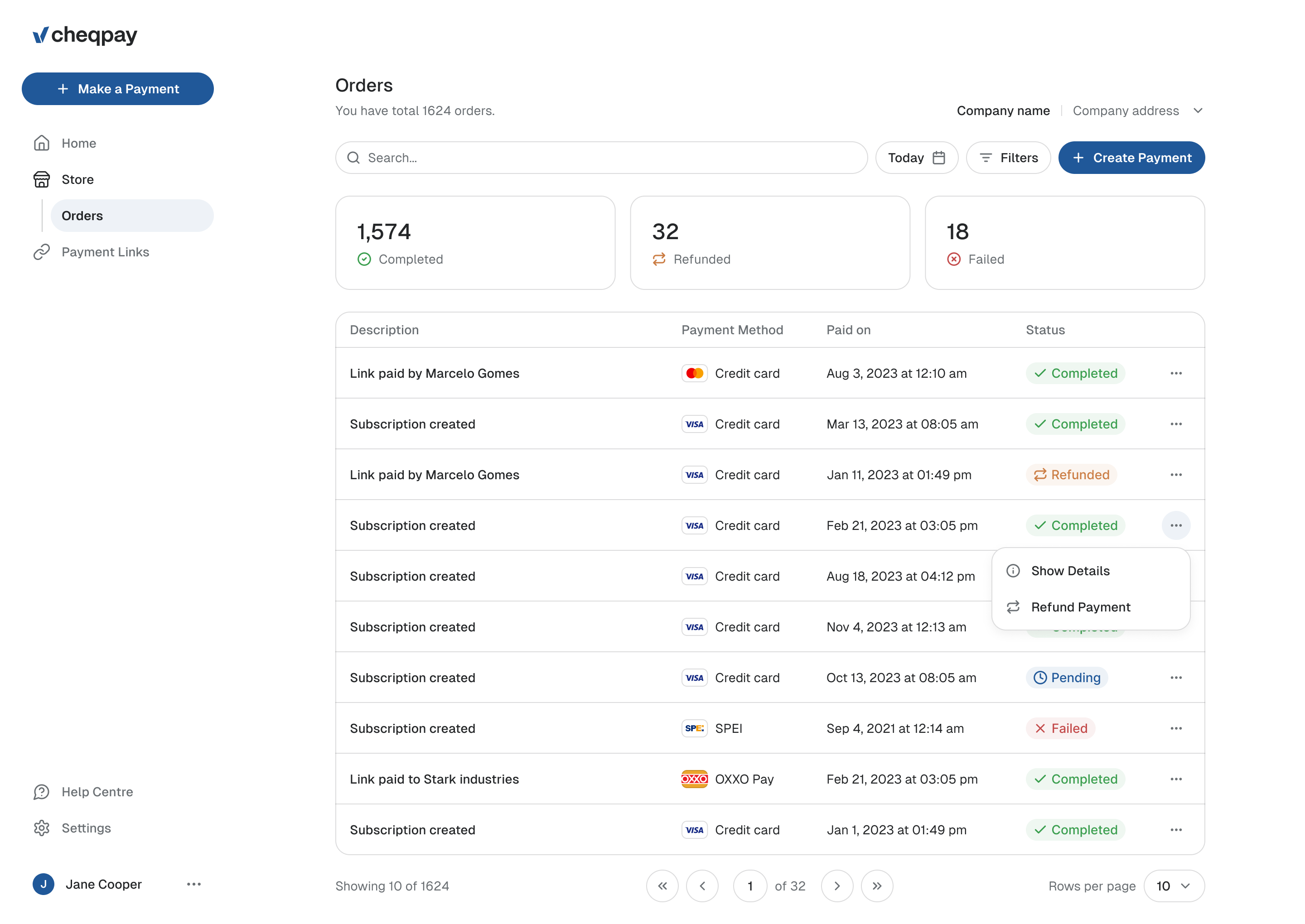
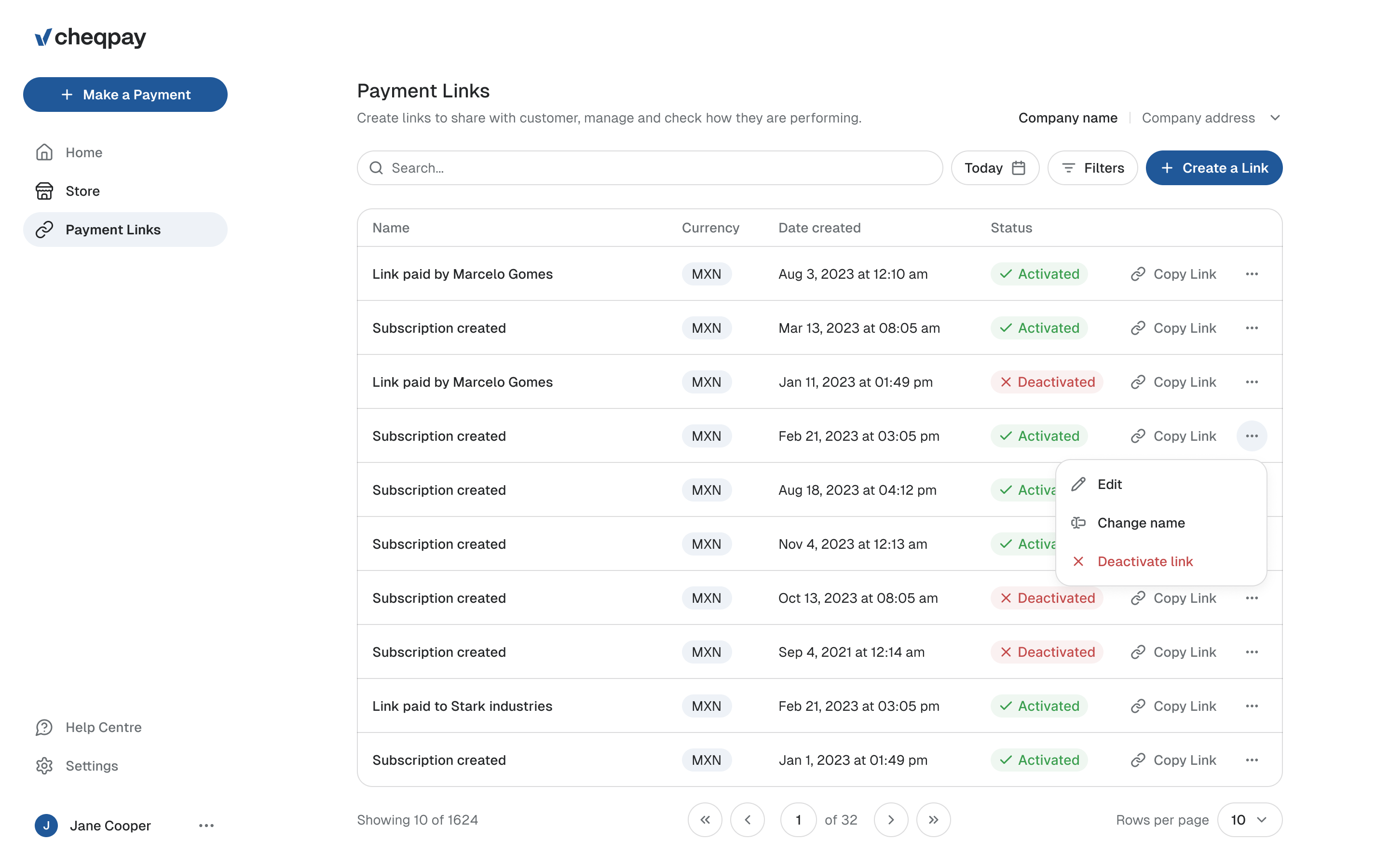
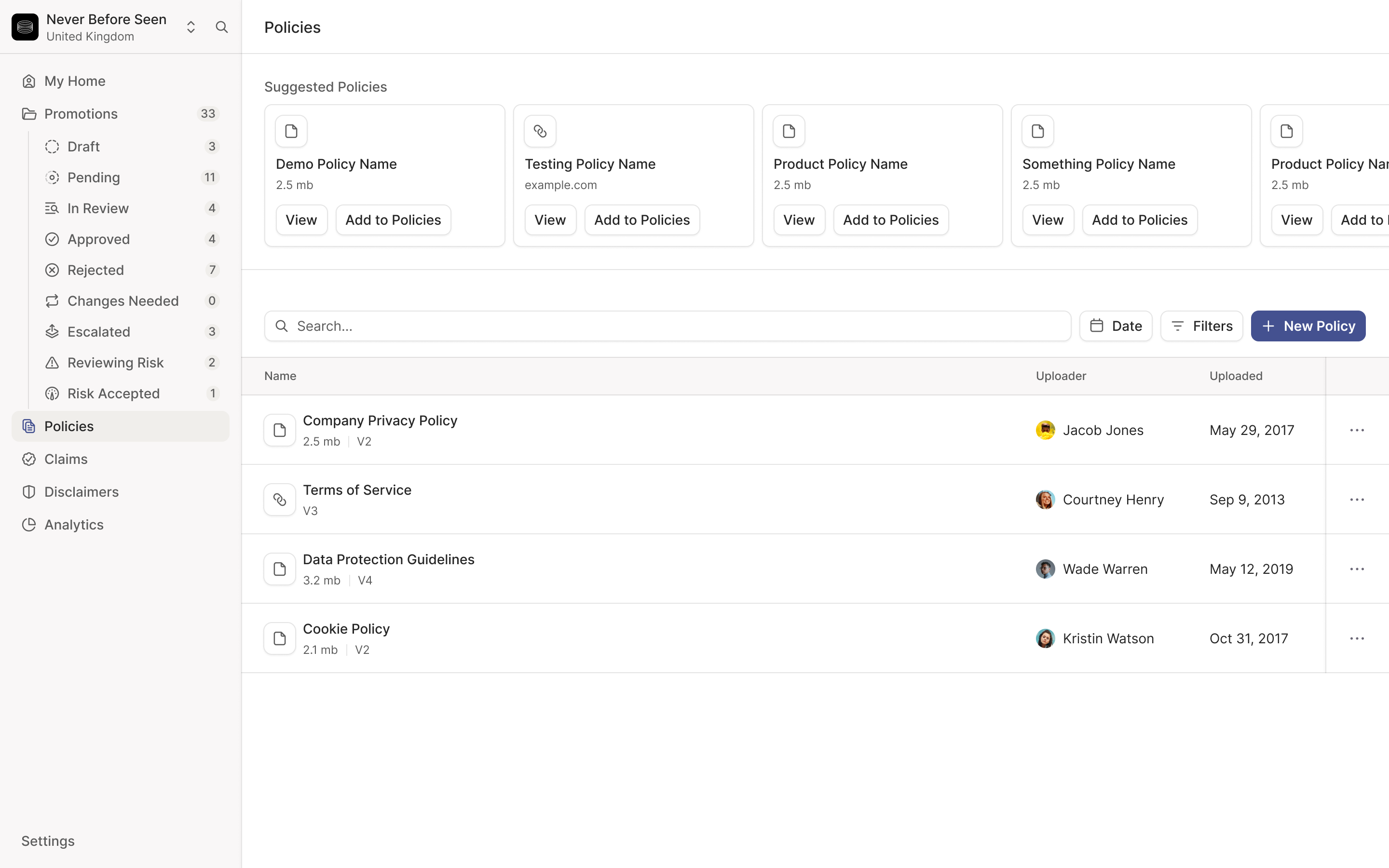
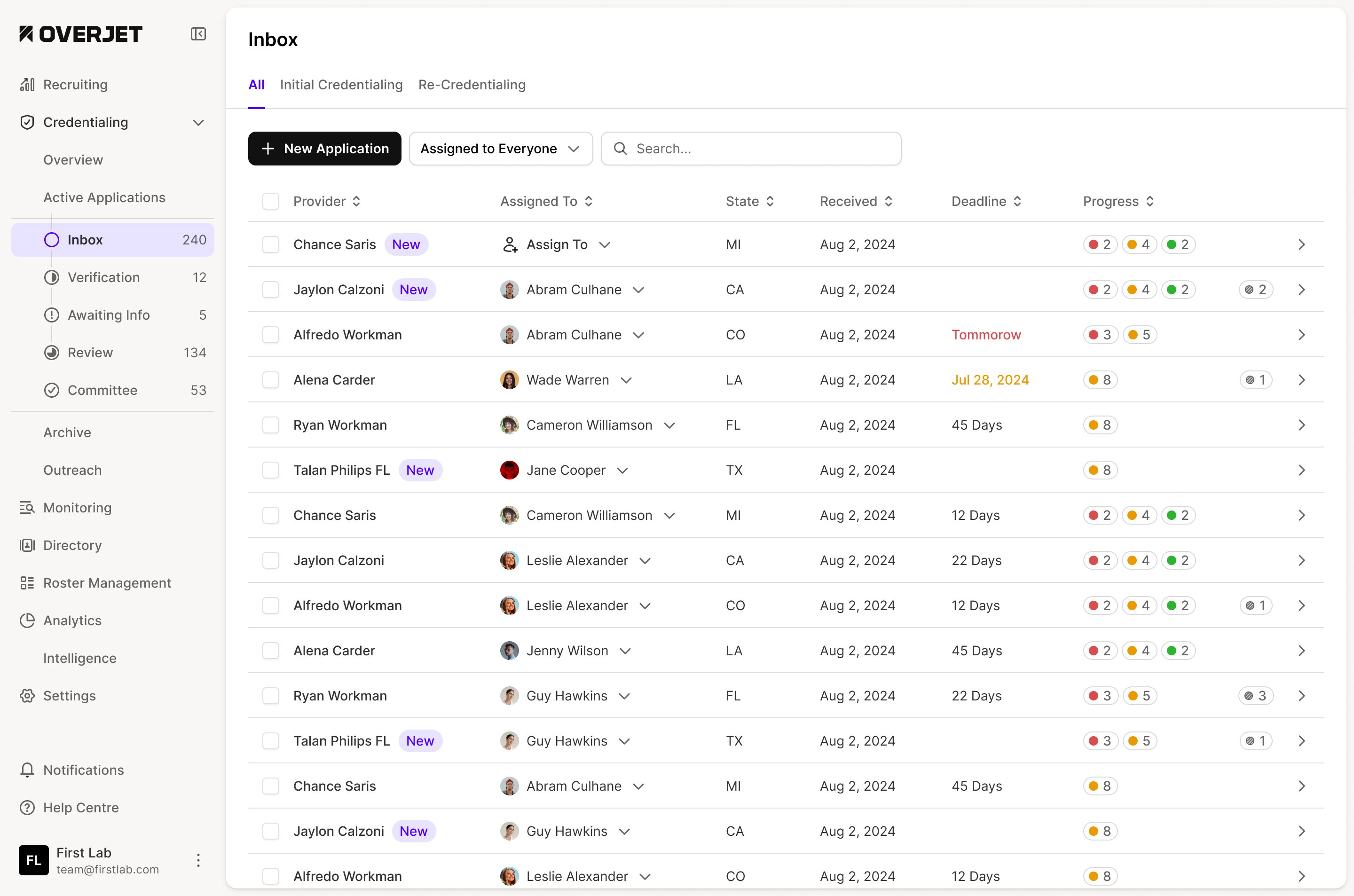
The orders screen uses the space differently for the two jobs. Large totals make completed, refunded and failed orders easy to read at a glance. Under them, a regular table carries the individual transactions. Search, date and filter controls sit directly above the list.
We kept that list to four columns: the order, payment method, date and status. Card payments, SPEI bank transfers and OXXO cash payments all follow the same row structure. A merchant can compare their state without moving between separate lists for each method.
The row menu holds details and refunds. Opening an order brings up its payment breakdown, shipping and payment information over the list. Those details are available when someone investigates a payment, without making every other row carry them. Refunding has its own shorter form for the reason, amount and a note.
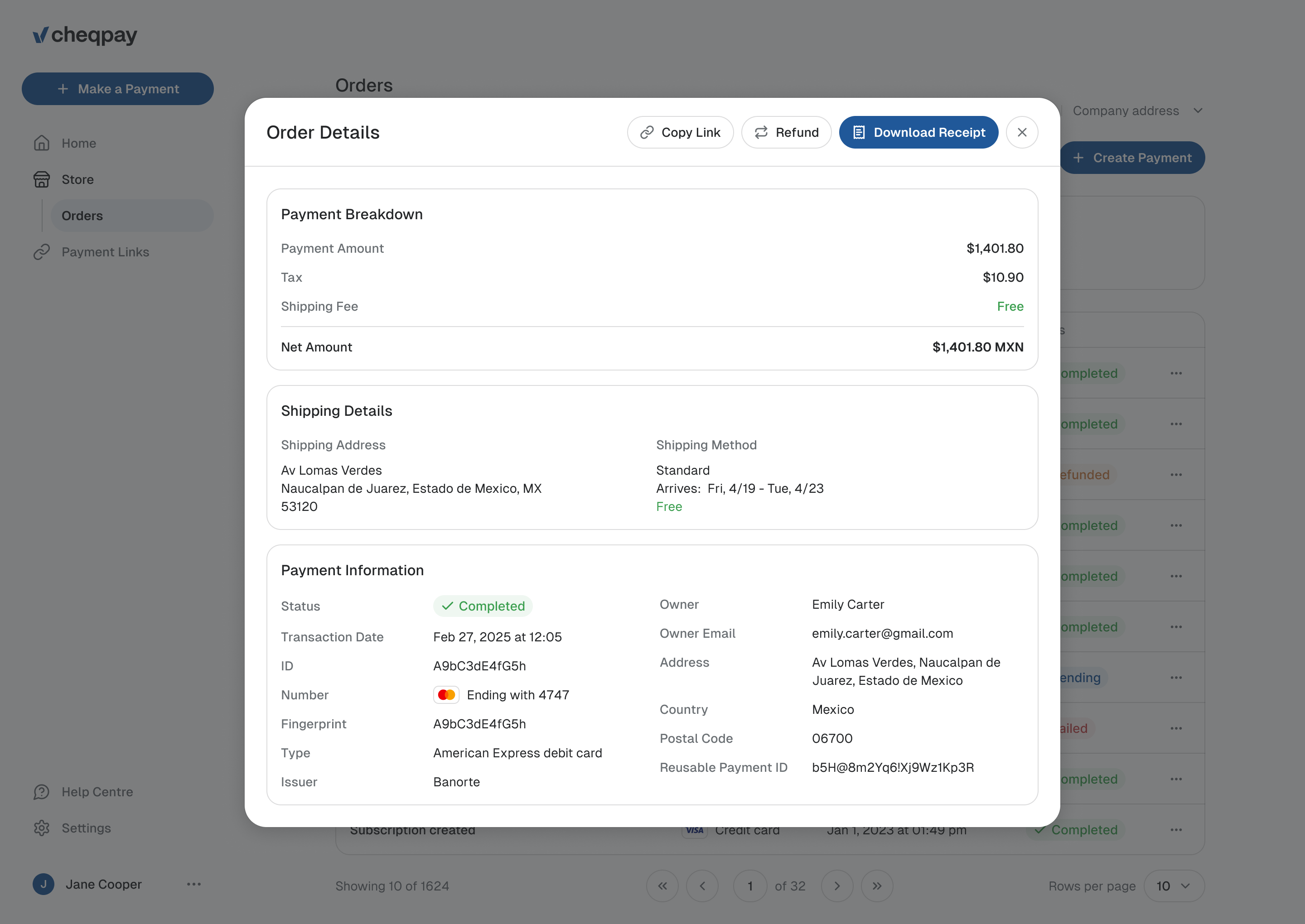
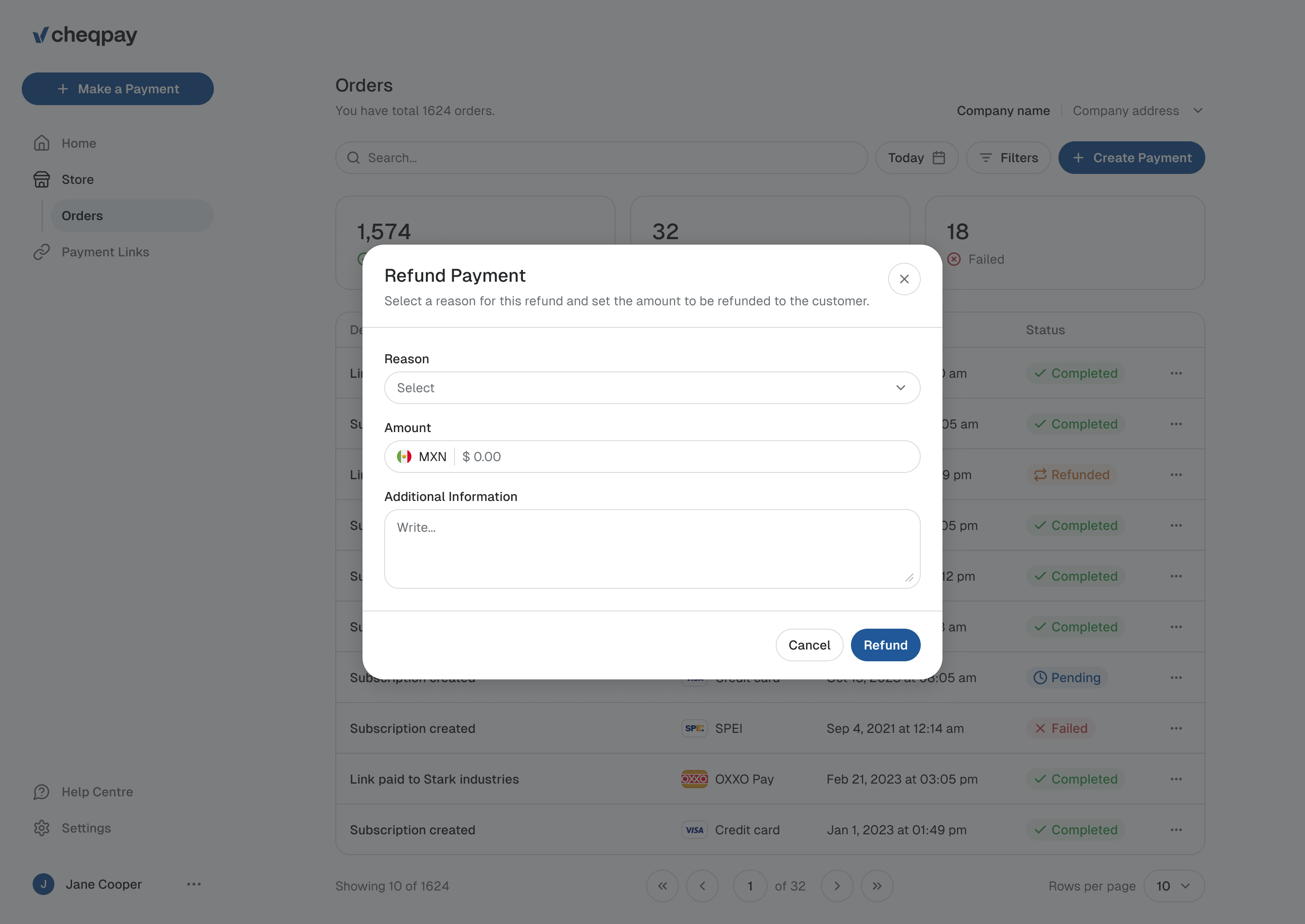
keep the list comparable; open the detail for one payment
Show the customer's checkout while the merchant builds it
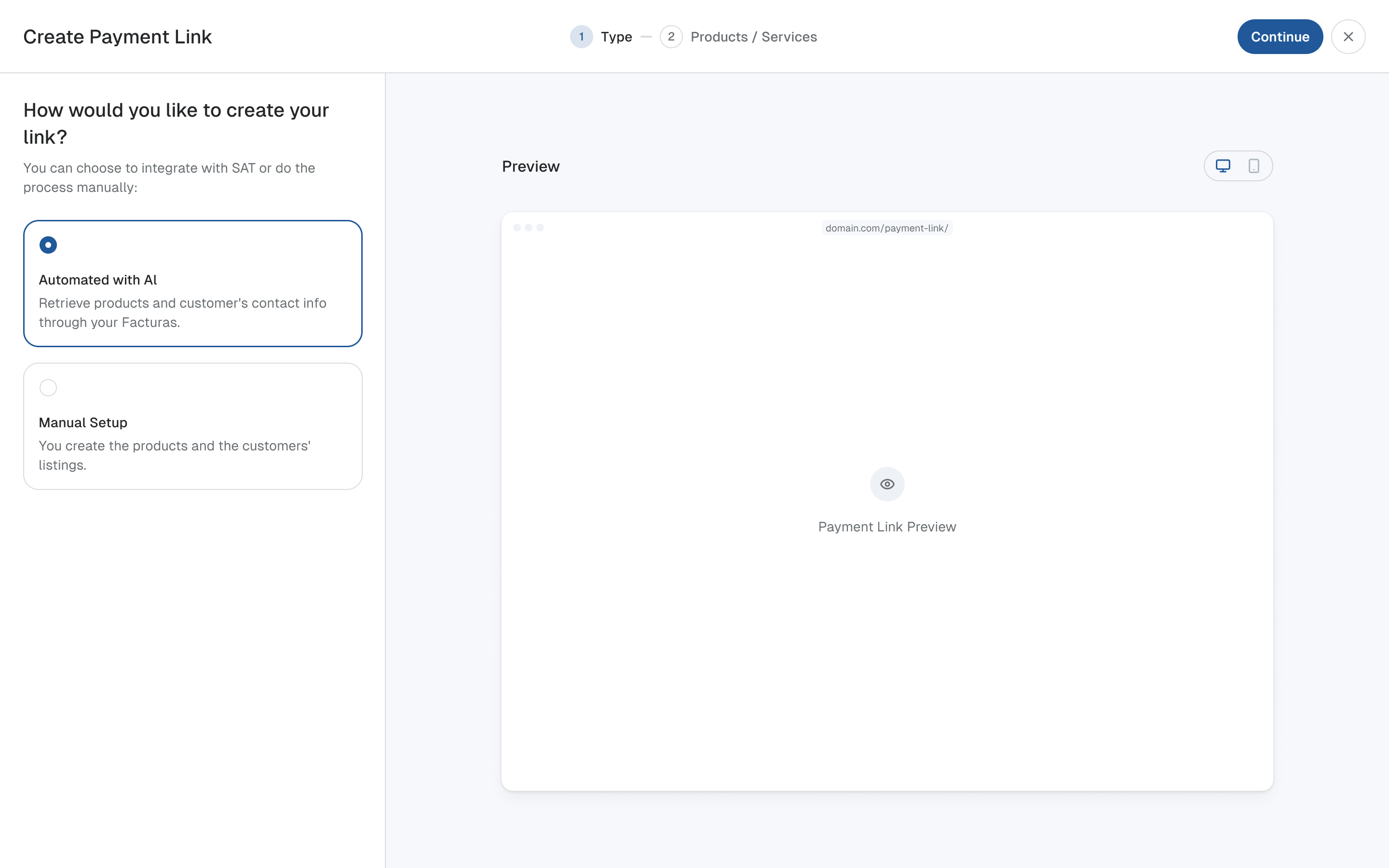
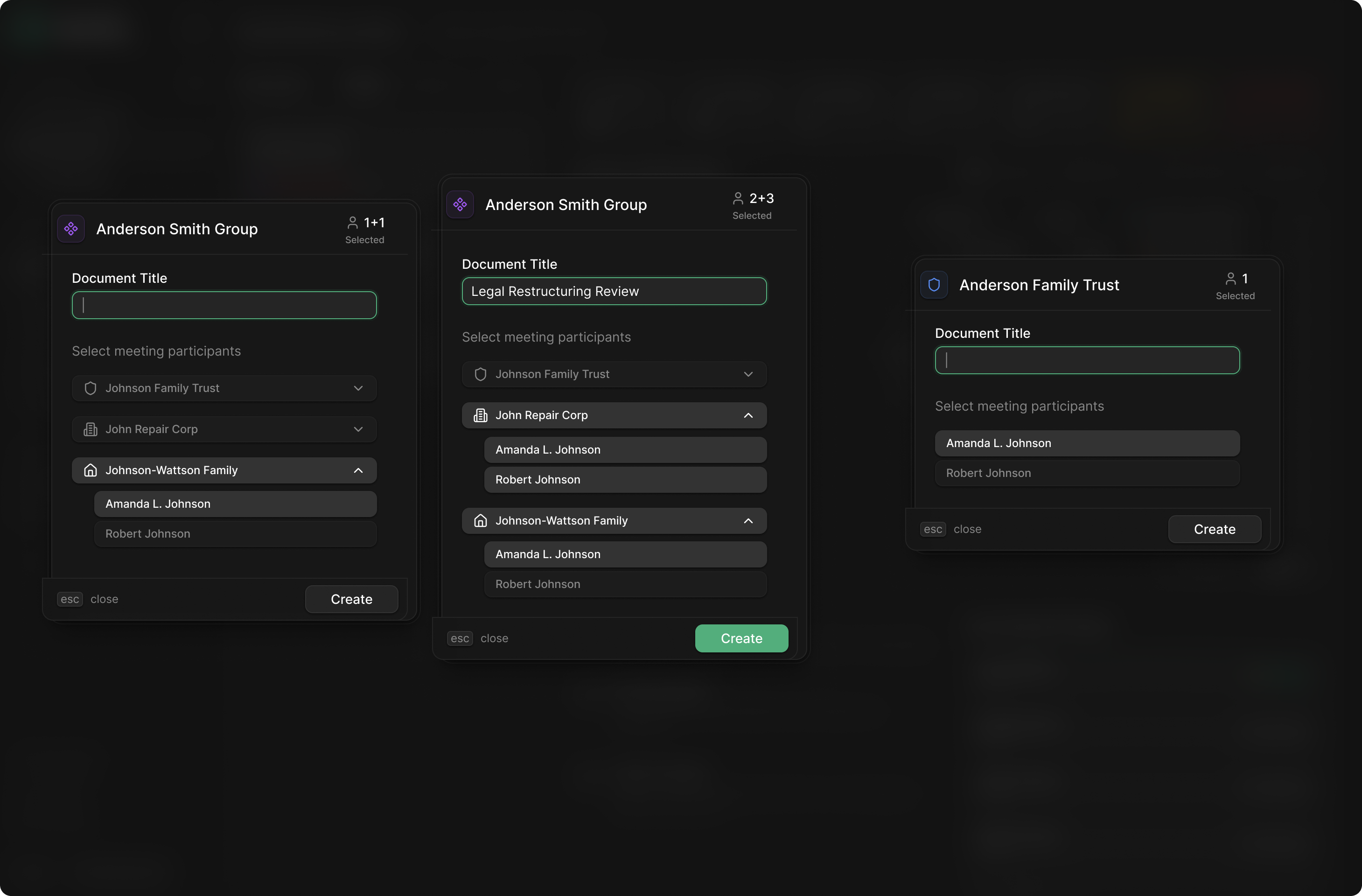
A payment link connects two people doing different jobs. The merchant needs to describe what they're selling and collect the right amount. The customer needs a checkout they understand. We put those views beside each other in the link builder.
Creating a link takes two steps: choose how to set it up, then add the products or services. A merchant can retrieve products and customer information from facturas or enter it manually. On desktop, the setup form sits on the left and the checkout preview occupies the larger space beside it.
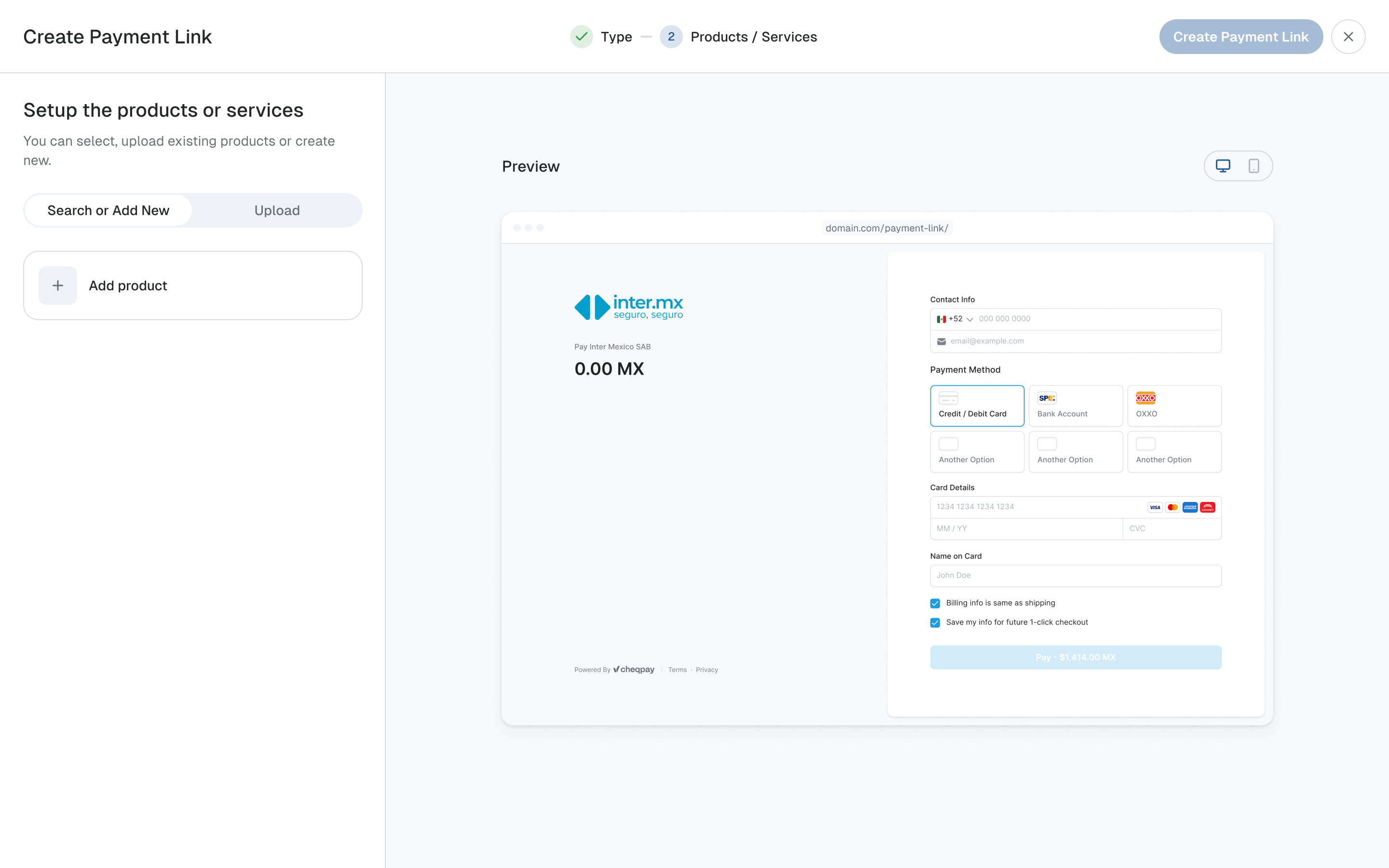
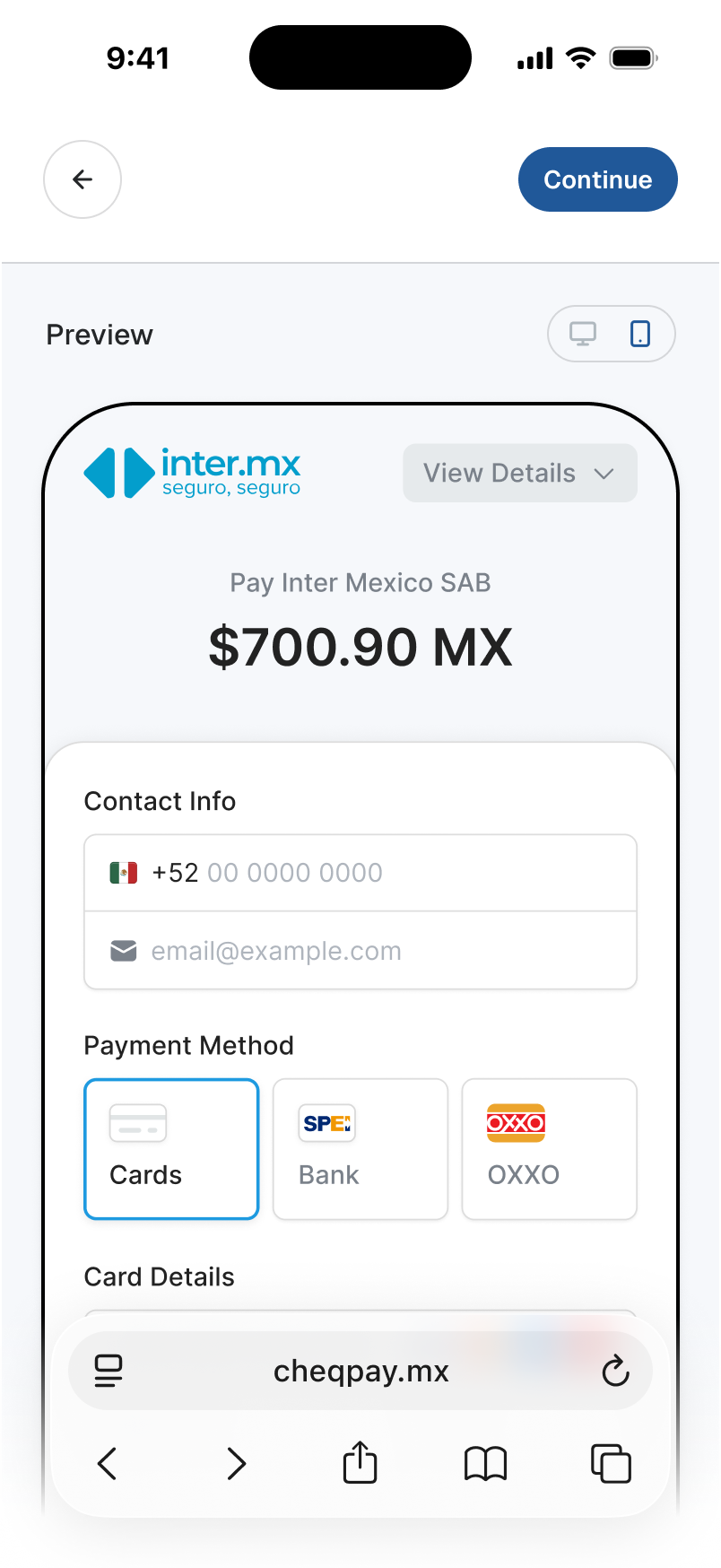
The preview gives the merchant a way to inspect what they're preparing to send, including the amount and payment choices. Switching it between desktop and phone keeps that check inside the task. They don't have to finish the link and open it elsewhere to see its layout.
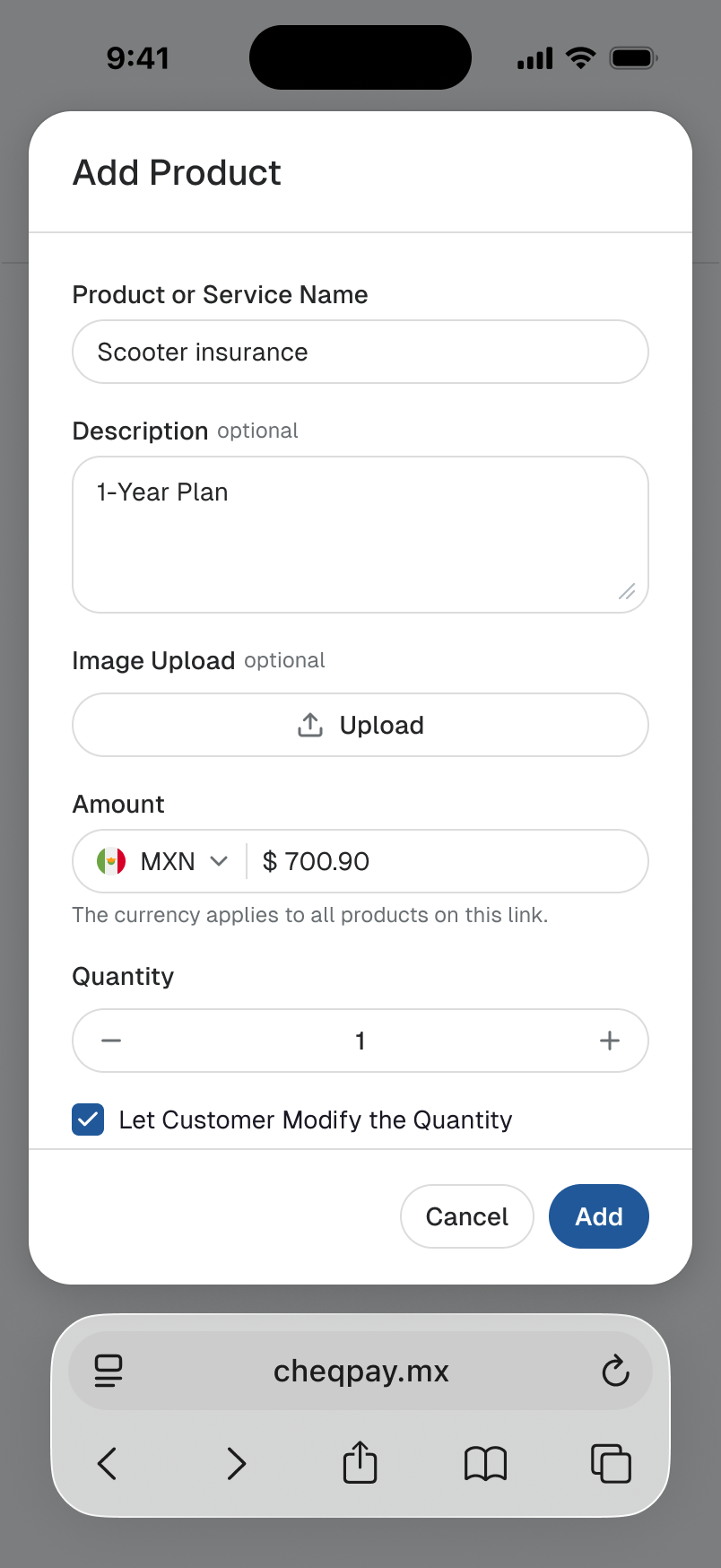
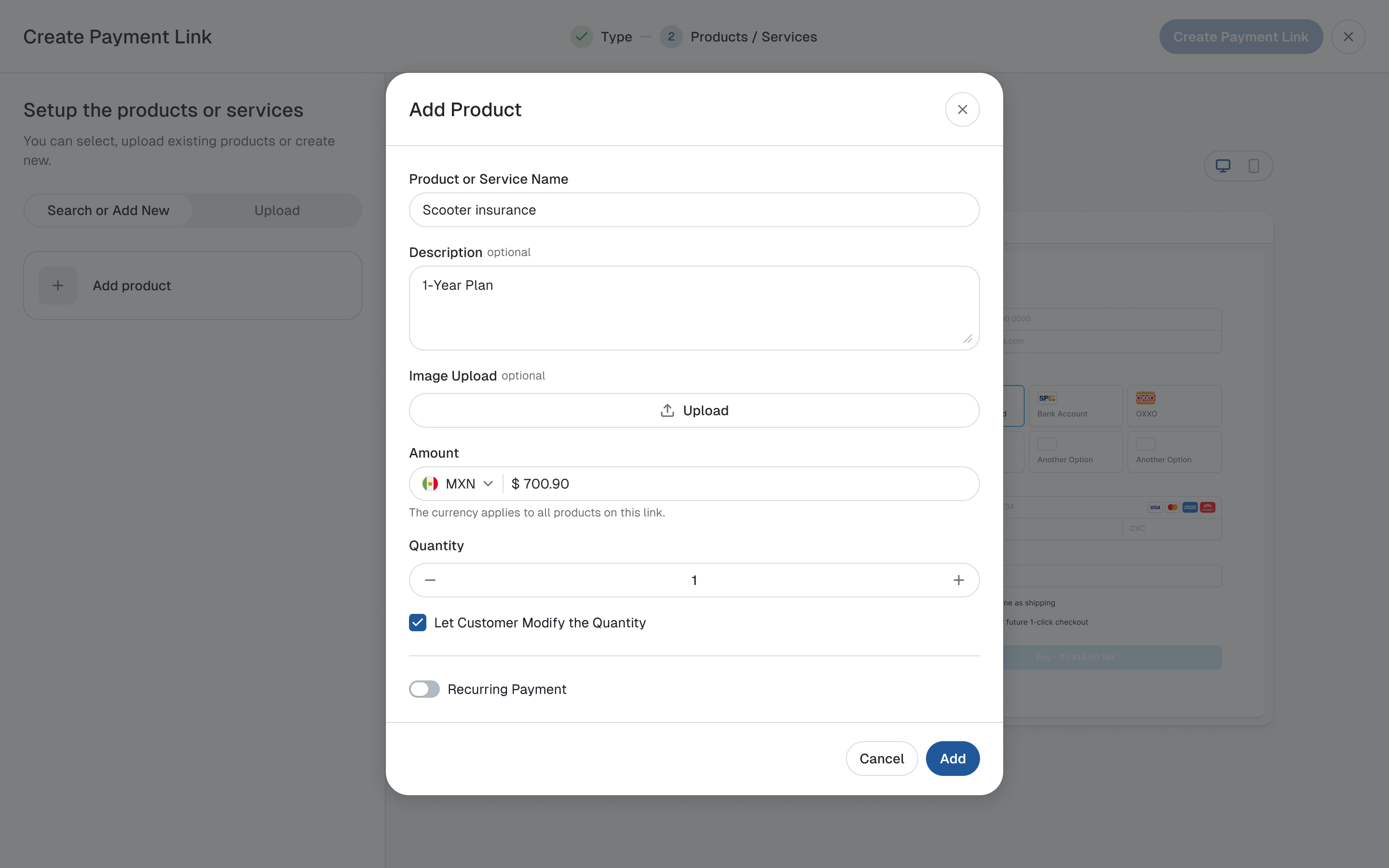
Adding a product opens a separate form. The required name, amount and quantity sit with optional description and image fields. Controls for letting the customer change quantity and for recurring payment belong to that product setup, so the main builder can stay focused on the products in the link and their checkout.
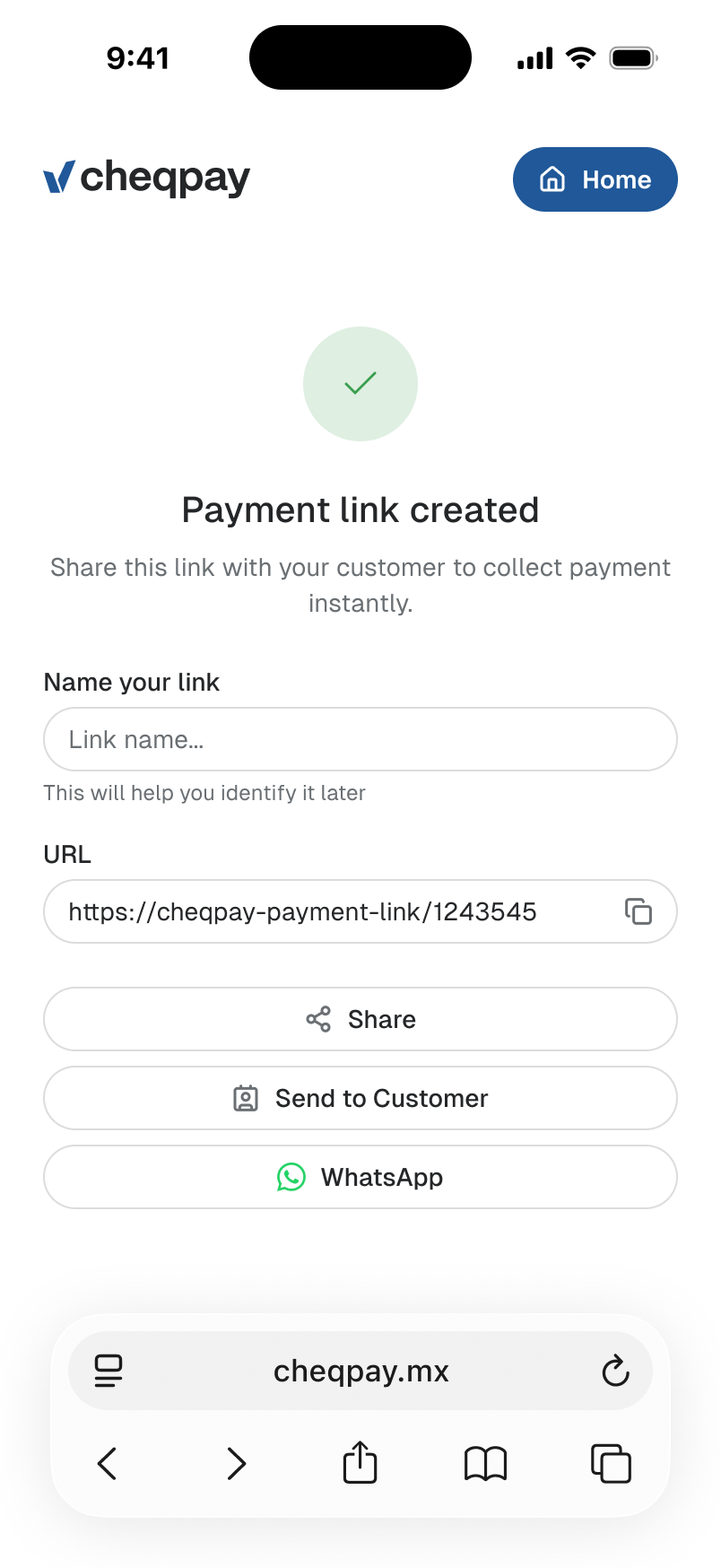
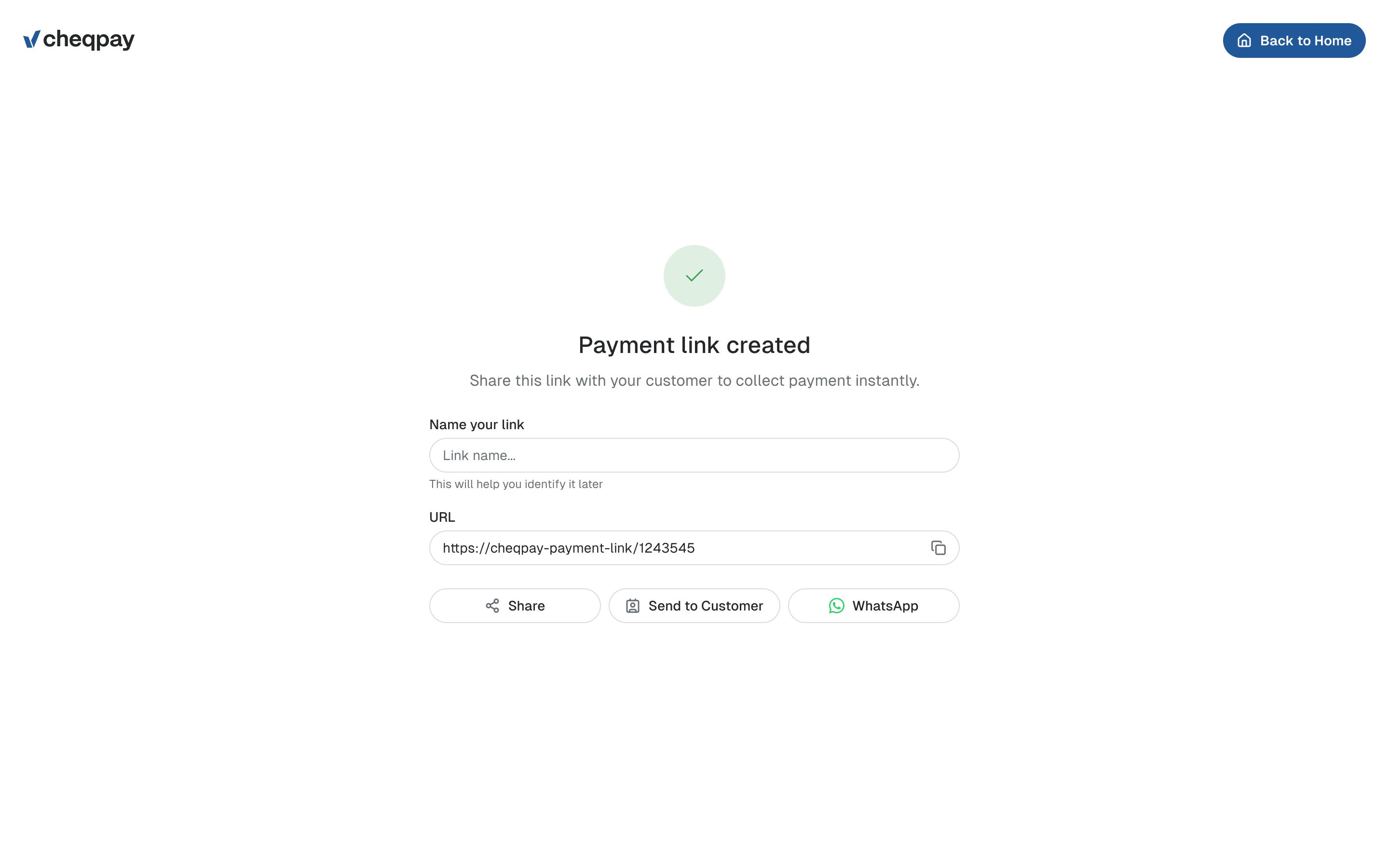
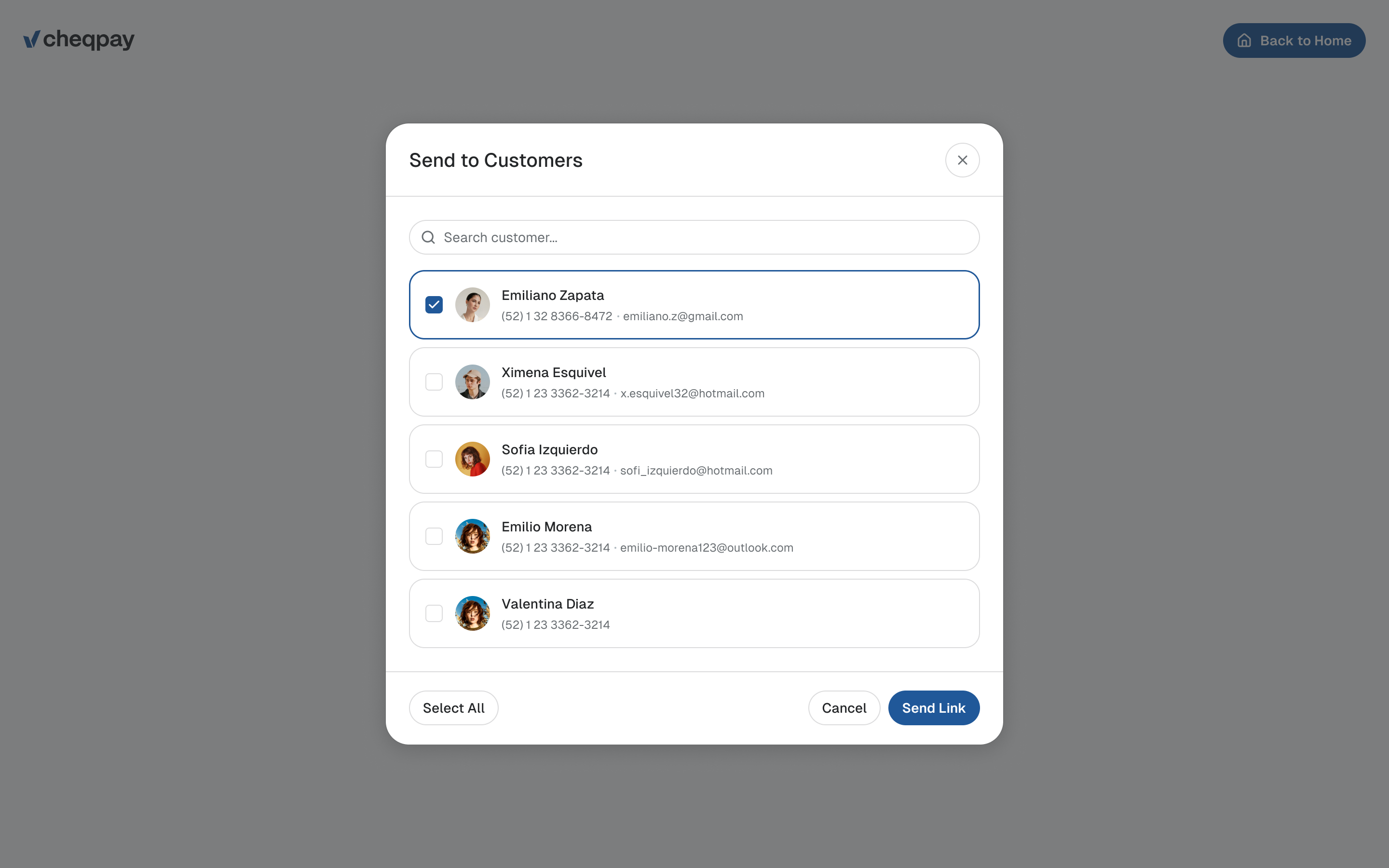
Finishing the form isn't the end of the merchant's job. They still have to get the link to a customer. The confirmation screen keeps the URL beside ways to share it, send it to customers from a list or use WhatsApp.
On a phone, the preview becomes a step you can open
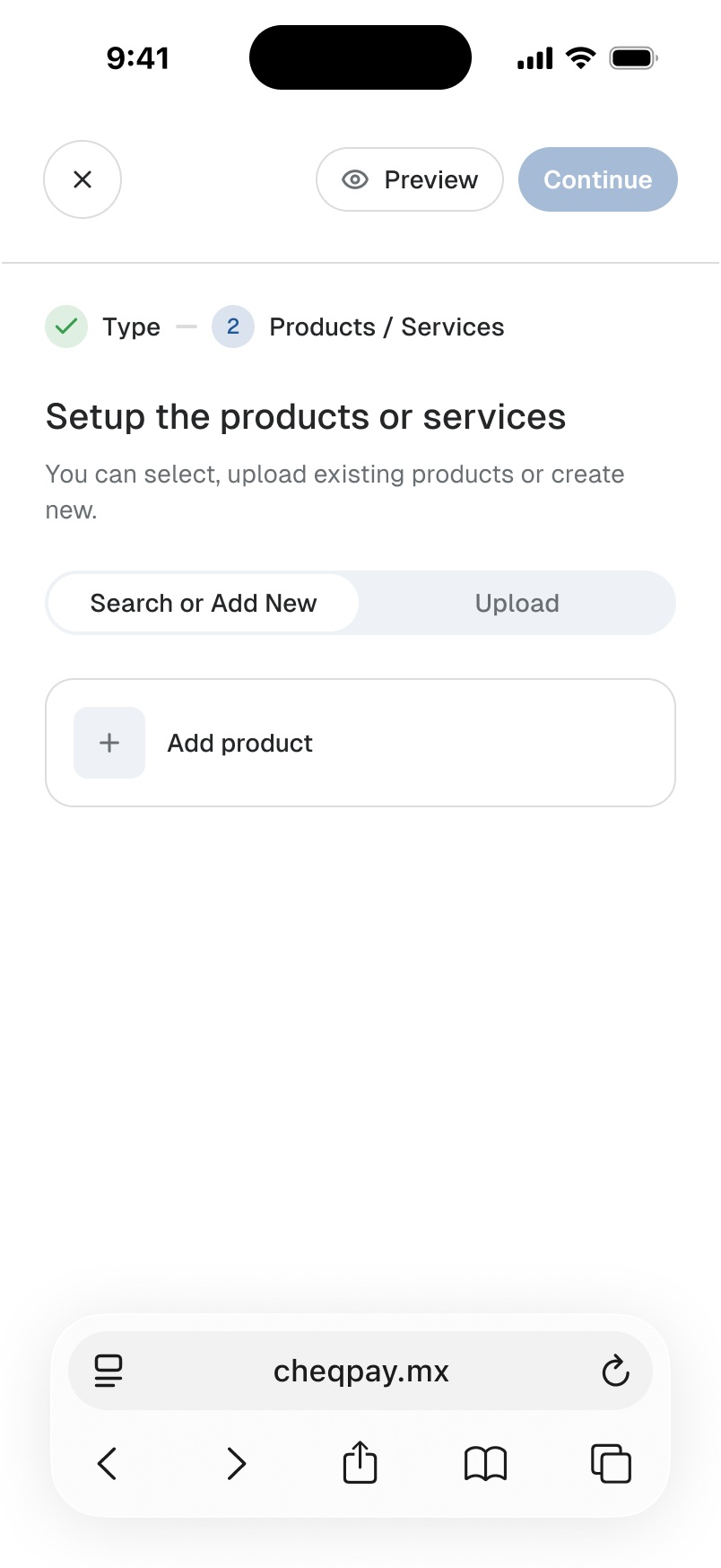
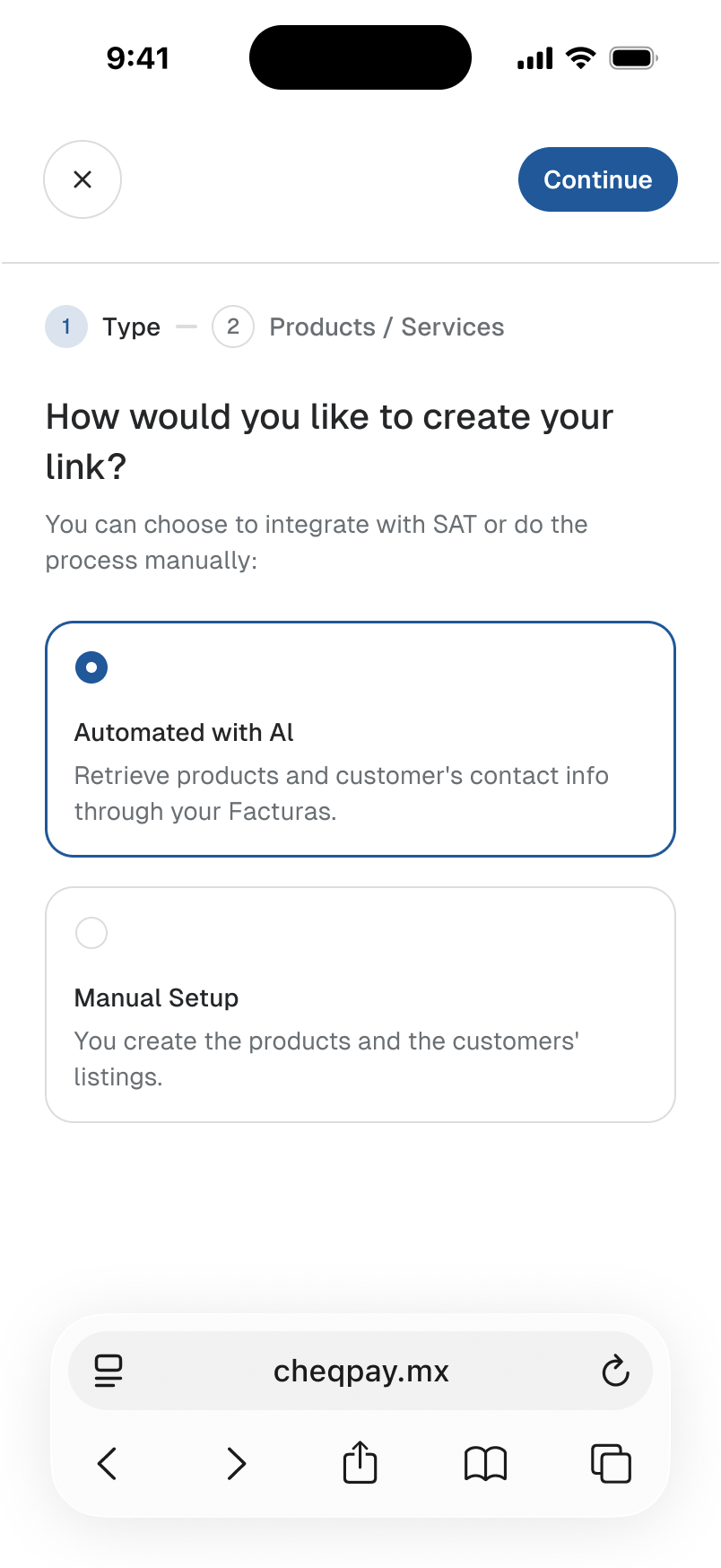
We designed the dashboard for the mobile browser too. The desktop builder's side-by-side layout couldn't survive at phone width: shrinking both panes would make the form and checkout harder to use.
On the phone, the setup fills the screen and Preview becomes a button. The merchant can switch to the customer view when they need it, then return to building the link. The same two-step progress indicator stays at the top of the form.
Give the developers a system they can extend
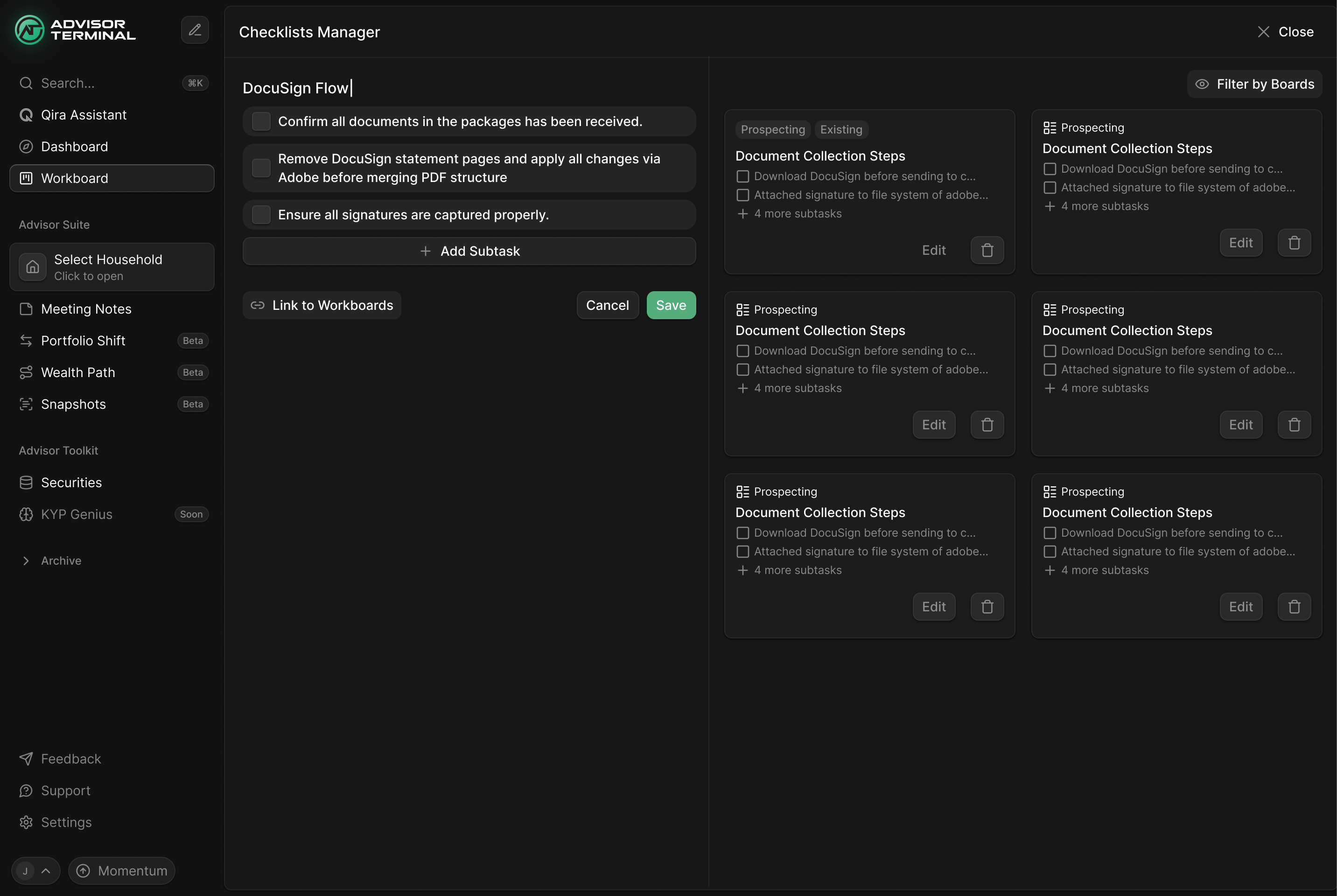
We could have redrawn every wireframe Cheqpay brought us. Many were tables with similar requirements. I proposed choosing the screens whose layouts differed most, settling those, and using them to build the design system. Thomas agreed: the system was the important part of the sprint, so the developers could keep drawing the remaining screens.
Prakash developed the visual direction. We tried green, then navy, before Thomas settled on one primary blue with the rest largely monochrome. I pushed to settle that while we were drawing the screens, because revisiting it at the end would mean going back over the work. Status colours remained distinct from the primary action colour.
The handover included the shared components, typography, colours and button sizes, with the screen components connected to the system. At the developers' request, we also checked examples on 2.5K and 4K displays. The sprint closed in the first week of January 2026, with the key layouts established and a component system for the team to use on the rest.

"The NBS team have been critical in not just the UI but also thinking through the product experience from first principles."
More from Cheqpay